Terminal surface
The Mjolnir TUI is a single control surface for conversations and the infrastructure behind them. It stays responsive while sessions launch, resume, suspend, or run work in the background.
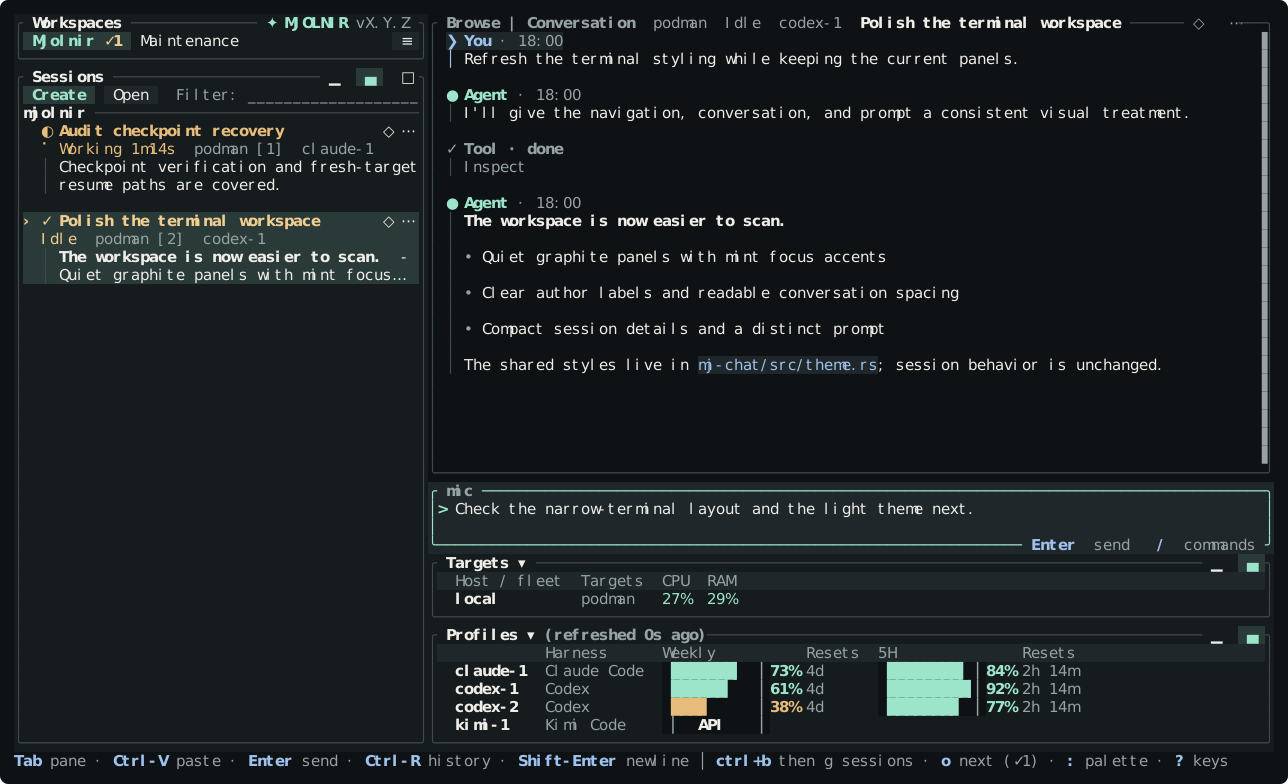
At startup, Mjolnir opens the most recently active live session in the selected workspace when one is available. Mjolnir never creates a session at startup: a workspace with no live sessions stays empty until you choose Create. Switching workspace tabs only filters the live session list and never creates a session; every workspace continues running independently. Suspended history is available from Open, including sessions that were previously archived by a provider. Provider archive metadata is read-only.
The Workspace pane has one tab row framed by two borders above Sessions. Click a
tab to switch immediately, or focus Workspaces and use the arrow keys to select
a workspace without opening a manager. The pinned ≡ button at the right of the
tab row opens workspace management for creating, renaming, recovering, or
deleting workspaces. The Workspaces command remains available in the command
palette. The selected workspace also determines where Create attaches the
new session.
Create opens the full session creation wizard and Open opens the
session dialog, which starts on the running sessions and keeps the suspended
history on its other tabs. The command palette opens with prefix+: or
from the clickable : palette hint in the footer; it remains available while you type and while a notice
replaces the footer. Each session row has a ⋯ button for its actions.
Displayed dashboard shortcut hints are clickable, including global shortcuts
in the composer’s footer. Help supports wheel scrolling and a Close button.
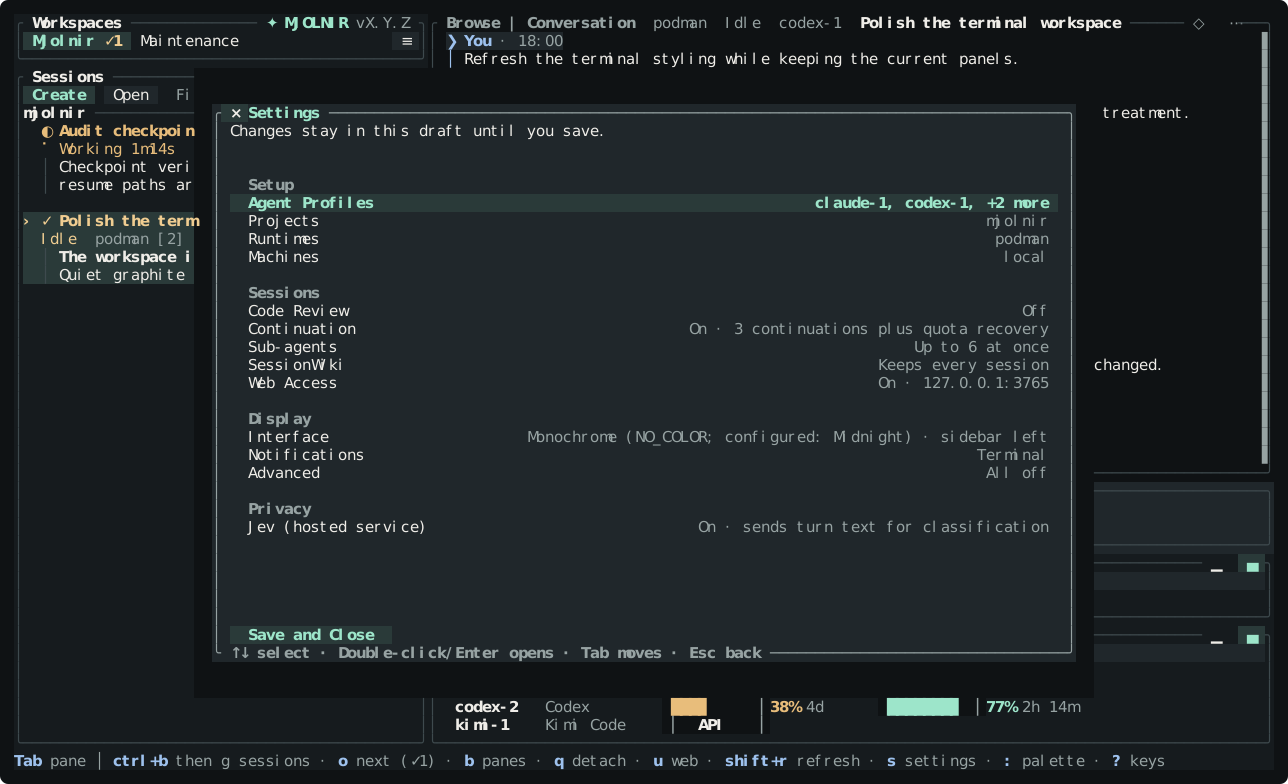
Open Settings (prefix+s) to choose Auto, Midnight (the default), Light,
Darcula, High Contrast, High Contrast Light, Colorblind Dark, Colorblind Light,
Catppuccin Mocha, Catppuccin Latte, Campbell, One Half Dark, One Half Light,
Solarized Dark, Solarized Light, Terminal Dark, Terminal Light, or Monochrome.
Saving applies the palette to the dashboard, conversation, and dialogs and
preserves it for future launches. Auto asks the terminal for its background
color when mj starts and draws Midnight on a dark background and Light on a
light one; Settings names the palette it picked and the color the terminal
reported. A terminal that does not answer, and Windows outside WSL, get
Midnight, and Auto does not follow a terminal that changes scheme while mj is
running. Colorblind Dark and Colorblind Light show success in blue, warnings
and activity in yellow, and failures in orange or deep crimson, so failures
stay distinct with red-green or blue-yellow color blindness. High Contrast
Light is black on white. Catppuccin Mocha and Latte paint the flavor’s own base
color. Campbell, One Half, and Solarized match the Windows Terminal
schemes of the same name, background included, so the dashboard blends into the
window under WSL. Terminal Dark and Terminal Light paint no backgrounds and use
the terminal’s own 16 colors, with a neutral gray for secondary text, so they
follow whatever scheme the terminal uses; pick the one that matches a dark or
light scheme. Like Monochrome, they carry selection with reverse video.
Monochrome paints no colors at all and carries focus and selection with bold and
reverse video; setting the NO_COLOR environment variable selects it whatever
the configuration says.
Settings → Advanced → Symbols switches every status mark, border, chart bar,
and footer separator to plain ASCII for a terminal that cannot show Unicode;
left unset, the dashboard does this by itself on the Linux console or
without a UTF-8 locale. Settings groups the prefix key, theme, spinner, and
Sessions sidebar position under Interface. It also edits Advanced display
options and integrated review settings; see Configuration.
Focus and scrolling
Section titled “Focus and scrolling”Tab moves focus through Workspaces → Sessions → Prompt → Targets → Profiles.
Shift+Tab moves in reverse. The transcript is not a tab stop, so focus changes
never take the composer away merely to scroll conversation history. When
Workspaces has focus, ↑ and ↓ select the previous or next workspace tab
immediately; Enter opens its manager actions.
Use Page Up and Page Down to scroll the transcript from any focused pane. A mouse wheel scrolls the surface under the pointer. Clicking a row selects it, and double-clicking a session opens it. Dragging across transcript or pane text copies that surface’s selection to the available system or terminal clipboard.
Over SSH, selection copying uses only the connecting terminal’s clipboard through OSC 52. Your terminal must support and allow OSC 52 clipboard writes; any terminal multiplexer must also allow them through.
Each list supports the same navigation keys:
| Keys | Action |
|---|---|
↑ / ↓ or j / k | Select the previous or next row |
Ctrl+P / Ctrl+N | Select the previous or next row |
Ctrl+D / Ctrl+U | Move eight rows down or up |
Home / End or G | Select the first or last row |
These keys work in the support panes, dialogs, and wizards. A focused text
field keeps them as text, so typing j or Ctrl+U in a search or name field
edits the field instead of moving the selection.
The Sessions pane keeps Create and Open above the session list. They remain available when the list is empty or filtered. Both Create shortcuts open the full creation wizard; Open opens the session dialog described below.
prefix+g, the Open button, and the Sessions command all open one
dialog over the dashboard. It opens on Live: every running session in every
workspace on one list, newest activity first, each row naming the workspace it
belongs to where the other tabs name a profile and a target. Enter on a row
goes to that session, switching workspace tabs first when it lives in another
workspace. ← and → reach the three history lists to its right, Mjolnir,
Import, and Archived, which list sessions you could have rather than
sessions you already have.
The dialog opens with the list focused, so j, k, and Enter work at once,
along with the letters below; press / to move to the search box instead. The
search box works on Live without waiting for the search index, because it
matches the session’s name, its ID, and its workspace name from what the
dashboard already knows. The letters a, b, w, i, and d narrow the Live
list by state exactly as they narrow the Sessions pane, and the list title says
which state is holding. They do nothing on the other tabs, whose sessions have
no current state. The preview pane under the list is fed by the search index,
so it shows a running session’s conversation only when an index search matched
that session.
Press / in Sessions to search the live list. Typing narrows it to sessions
whose name, project, profile, or target contains the text, and the pane title
shows the query. Enter keeps the filter and hands the letters back to the
pane; Esc clears the text, and a second Esc clears the whole filter. The
letters b, w, i, and d keep only blocked (waiting or failed),
working, idle, or done (unread) sessions, a shows all again, and a state
filter composes with the search text. The footer names these letters beside the
/ key, and the pane title reports how many sessions the filter is holding
back when there is room for the count. While a filter is on, the title ends
with × (x with ASCII symbols), and clicking it clears the whole filter,
search text and state together. Switching workspace clears the filter,
and so does jumping with prefix+o to a session the filter would hide.
Normal session rows use four lines: the session name, one metadata line, and two wrapped output lines. The metadata keeps the profile, target, and useful status details together; the output shows the latest reply, tool activity, or prompt. A minimized Sessions pane uses two lines per row, retaining the status and queue count in the compact form.
The metadata line also carries the checkout’s branch once it has been read,
as ⎇ feature/x ↑1 ↓2 ±4: the branch, commits ahead of and behind its
upstream, and the number of changed files. Mjolnir reads a visible live
session’s checkout on its target about once a minute, so the branch is right
even after the agent switches branches. prefix+d opens the full list for
the selected session: each file with its kind and its added and removed
lines, r or Refresh to read again, and Esc to close.
Terminal scrollbars are intentionally slim. The transcript, list panes, and dialogs keep their scrollbar rails for mouse and keyboard scrolling without letting the rail take space from the content.
Pane-specific actions are deliberately small:
| Focus | Key | Action |
|---|---|---|
| Sessions | Enter | Open the selected session |
| Workspaces | ↑ / ↓ | Select the previous or next workspace tab immediately |
| Sessions | n / N | Open the full session creation wizard |
| Sessions | Space | Fold or unfold the selected project |
| Sessions | 1–9 | Fold or unfold the numbered project |
| Sessions | / | Search sessions by name, project, profile, or target |
| Sessions | b / w / i / d / a | Show only blocked, working, idle, or done sessions, or all |
| Sessions | Esc | Clear the search text, then the whole filter |
| Targets | Enter or e | Open target actions, including test and rename |
| Targets | . | Open the menu under the Targets title |
| Profiles | Enter or e | Edit the selected profile configuration ID |
| Profiles | . | Open the menu under the Profiles title |
The Targets and Profiles titles are also menus, marked ▾. Click a title, or
press . while its pane has focus, to open the menu under it. Refresh asks
every target for its capacity and availability and every profile for its quota
again, the same as prefix+shift+r. In the Targets menu, Runtimes… opens
Settings on the Runtimes page and Machines… opens it on the Machines page.
In the Profiles menu, Settings… opens Settings on the Agent Profiles page.
The number keys pick an entry directly: 1 is Refresh, and so on down the
menu. Esc closes the menu without doing anything.
Pane sizes
Section titled “Pane sizes”The bordered Workspaces and Sessions sidebar is 20 columns wide when minimized.
At standard size it uses one third of the terminal width, bounded to 40–80
columns; maximized uses half, bounded to 40–100 columns. Both stay within half
the terminal on narrow screens. The Workspaces pane keeps one bordered tab row
above the Sessions list at every sidebar size. Sessions, Targets, and Profiles each
have minimized (▁), standard (▄), and maximized (□) title-bar controls.
Click a control, or focus a support pane and press prefix+shift+z to cycle through
its sizes. Max is hidden when it adds no space over Standard. The sidebar
needs at least 80 columns, so standard and maximized are both 40 columns at
that width.
- A minimized Targets or Profiles pane becomes a one-line summary.
- A minimized sidebar narrows the workspace tabs and shows two lines per session.
- Only one support pane can be maximized at a time.
- Maximized Sessions widens the sidebar. Maximized Targets or Profiles receives available vertical space below Prompt.
Targets and Profiles stay together. When both full tables fit beside a maximized sidebar, they appear below the conversation. Otherwise, they move below both Sessions and the conversation and span the terminal width. Profiles keeps exact quota percentages and reset times.
Between 60 and 79 columns, such as a phone over SSH, there is no room for a sidebar: the workspace tabs and a compact Sessions list stack above the conversation, Targets and Profiles become one summary row each below it, and every key and click works as before. Below 60 columns the dashboard shows what size it needs instead.
prefix+b toggles a dashboard preset. When all panes are standard, it minimizes Sessions, Targets, and Profiles. When sizes have been customized, it restores all three to standard. Tab changes only focus and never changes a pane’s size.
Conversation panes
Section titled “Conversation panes”The > marker in Sessions identifies the active conversation. Clicking a conversation or navigating between panes moves the marker to that session. Selecting a session in the list activates its existing pinned pane, or opens it in the pane labeled Browse if it is not pinned. Other pinned conversations stay in place.
List navigation keeps the keyboard in the list; Enter or double-click enters the selected session’s composer. An active empty pane has no selected session. While a conversation loads, its pane shows its own loading or error state. All sessions keep running whether or not a pane shows them.
Filtering Sessions keeps the active session visible with an Outside filter label when it does not match. Selecting another session removes that exception for the previous row. Filtering and background status changes do not switch the active conversation.
Click ◇ in a session row or Browse header to pin. Choose Pin and browse
right/down to keep that session in place and create a new Browse beside it,
or Pin in empty pane… to click an existing empty destination (number keys
also work). An empty pane offers Pin selected here. Click ◆ to unpin,
leaving its rectangle empty so the grid stays intact. ASCII terminals use +
and *. Each pin has a matching colored letter badge in its row and pane title;
badges stay with sessions when panes move and survive restarting.
Splits follow the pane you target. prefix+v splits the active conversation
pane right, and prefix+- splits it down. Right-click a pane or click its ⋯
header control for the same choices. Only that rectangle is divided, initially
in half; existing contents stay left/top and the new half becomes Browse. The
previous Browse becomes pinned if it held a session, otherwise its old slot
stays empty. Keyboard focus returns to Sessions so you can immediately browse
into the new pane. A split is refused if either half would be under 40 columns
or 8 rows, without changing the arrangement.
Use prefix+h/j/k/l to focus left/down/up/right and
prefix+shift+h/j/k/l to swap with a neighbor. With the mouse, focus one pane,
then right-click another and choose Swap with focused pane. Swaps carry the
pin or Browse role with the pane and preserve the grid’s geometry. Activating a
pane selects its session in the list; the Browse location stays unchanged.
prefix+x or a pane’s × closes a pinned or empty view without stopping its
session. Browse is required and cannot be closed; use swaps to move it.
prefix+z zooms the focused pane, and the header zoom control restores the full
layout. Browsing a session outside the zoomed pane reveals the full layout.
prefix+r enters resize mode; split borders can also be dragged. The command
palette offers these operations and individual directional resize commands.
The layout, Browse location, pinned sessions, empty slots, pin badges, and active pane are saved per workspace and restored after restart. The Sessions marker is restored from that pane’s conversation. Keyboard focus indicates whether keys navigate the list or edit the composer; pin colors connect pinned rows to their panes. Lifecycle status indicators retain their own meanings.
Prefix key
Section titled “Prefix key”Mjolnir uses a tmux-style prefix key instead of one direct chord per command: press the prefix, release it, then press a second key. The footer shows a PREFIX banner while a prefix press is pending. The default prefix is ctrl+b, the same as tmux and herdr, so the same muscle memory carries over. Esc cancels a pending prefix without sending anything; an unbound key after the prefix shows a footer notice instead of doing nothing silently.
The commands below run from any dashboard pane and from the composer, once the prefix has been pressed. They are written here as prefix+<key> because every one of them, including the prefix itself, can be rebound. The table lists every command that has a default key; the [keys] reference also lists the commands that have none:
| Key | Action |
|---|---|
prefix+? | Open help; ? also opens it when a non-Prompt pane has focus |
prefix+: | Open the command palette |
prefix+s | Open Settings |
prefix+c | Open the full session creation wizard |
prefix+g | Open the session dialog: every running session in every workspace, with the resume, import, and archive lists on the tabs to its right |
prefix+shift+n | Open workspace management |
prefix+w | Focus the workspace tab row |
prefix+n / prefix+p | Select the next or previous workspace |
prefix+1–prefix+9 | Select a workspace by number |
prefix+tab | Focus the next support pane |
prefix+shift+tab | Focus the previous support pane |
prefix+shift+z | Cycle the focused support pane’s size |
prefix+b | Toggle the dashboard pane preset |
prefix+shift+r | Refresh all target capacity and profile quota data |
prefix+shift+c | Cancel the selected session’s in-flight launch, resume, or suspension operation |
prefix+a | Mark unread session activity as read |
prefix+o / prefix+shift+o | Open the next or previous session that needs you, in any workspace |
prefix+u | Show the web viewer address and access code |
prefix+shift+t | Rename the selected session |
prefix+t | Toggle the transcript between rendered and raw text |
prefix+d | List the selected session’s changed files, branch, and distance from upstream |
prefix+m | Start or stop dictation when voice input is available |
prefix+v | Split this pane right and browse in the new half |
prefix+minus | Split this pane down and browse in the new half |
prefix+x | Close the conversation pane you are in |
prefix+shift+x | Confirm suspension of the selected session |
prefix+. | Open the selected session’s actions menu (Session actions…); . does the same on the Sessions pane |
prefix+shift+a | Show the selected session’s sub-agents |
prefix+i | Interrupt the selected session’s running turn; Esc in the composer does the same |
prefix+r | Enter resize mode: arrow keys or h/j/k/l move the pane border, Esc leaves |
prefix+shift+h / prefix+shift+j / prefix+shift+k / prefix+shift+l | Swap the conversation pane you are in with the one left, below, above, or right |
prefix+shift+w | Rename the current workspace |
prefix+shift+d | Close the current workspace |
prefix+h / prefix+j / prefix+k / prefix+l | Move the keyboard to the conversation pane left, below, above, or right |
prefix+; | Move the keyboard back to the conversation pane it was in before |
prefix+z | Zoom the conversation pane you are in, or put the others back |
prefix+q | Detach this terminal while the daemon and sessions continue |
Esc is not a detach key. It closes a dialog or, from the conversation, cancels the active agent turn or shell command. prefix+shift+c is different: it cancels a lifecycle operation such as launch or resume. Use prefix+shift+x or Suspend session in the command palette to save a recovery copy and release the environment. Suspension asks for confirmation when a turn is running or a sub-agent is still at work, because suspending stops its sub-agents. Restart, Move, Destroy session, container settings, and managing profiles or targets have no default key.
Pressing the prefix twice sends the literal key through to whatever has focus instead of running a command. In the composer this is how you still reach Ctrl-B, backward-character: press ctrl+b ctrl+b.
Every binding above, including the prefix itself, is editable in config.toml under [keys]; see Configuration.
Sessions that need you
Section titled “Sessions that need you”Every session has an attention level: failed, unreachable, waiting for your
input, unread, working, or idle. prefix+o opens the session that most needs
a person and prefix+shift+o walks the same list backwards. Failures come
first, then sessions whose worker cannot be reached, then questions, then
finished answers you have not read; within a level the most recent activity
leads. The walk continues from the selected session when it is in the list,
wraps at either end, and crosses workspace tabs, unfolding a folded project on
the way. When nothing is waiting, the footer says so. While something is, the
footer names the key with the same badge the tabs carry, for example
o next (!2).
A badge is the most urgent level’s symbol followed by the number of sessions
at that level: ×1 for one unseen failure, !2 for two questions, ✓3 for
three unread answers. Viewing a failed session’s explanation clears its
failure notice in the current terminal; the session row still shows that it
failed. A changed error or another failure after recovery is flagged again.
Red means something broke; the
attention colour means something is only waiting on you. Each workspace tab
carries the badge for its own sessions, a folded project heading carries one
for its hidden rows, and a minimized Sessions pane carries one in its title.
When a session you are not looking at starts needing you, Mjolnir rings the
terminal bell after a short delay and keeps the terminal window title at
mj · 2 waiting · 1 unread, so a background tab or a tmux window shows the
count without switching to it. Failed and unreachable sessions are counted
under their own words, for example mj · 1 unreachable · 2 waiting. Settings → Notifications turns the bell off,
adds a desktop notification, or changes the delay; see
Configuration.
Settings → Advanced → Session order changes how the Sessions pane sorts.
project (the default) groups sessions under a heading per project in
creation order. priority drops the headings and lists sessions by attention
level, so a question is always at the top; the numbered fold keys do nothing
in this order.
Command palette
Section titled “Command palette”Click Commands or press prefix+: to expose both shortcut-backed and palette-only actions. Commands for the selected session come first, followed by commands for the focused pane and then global commands. Click a command and Run to execute it, or Close to dismiss the palette. A session row’s ⋯ button opens a palette limited to that session’s actions.
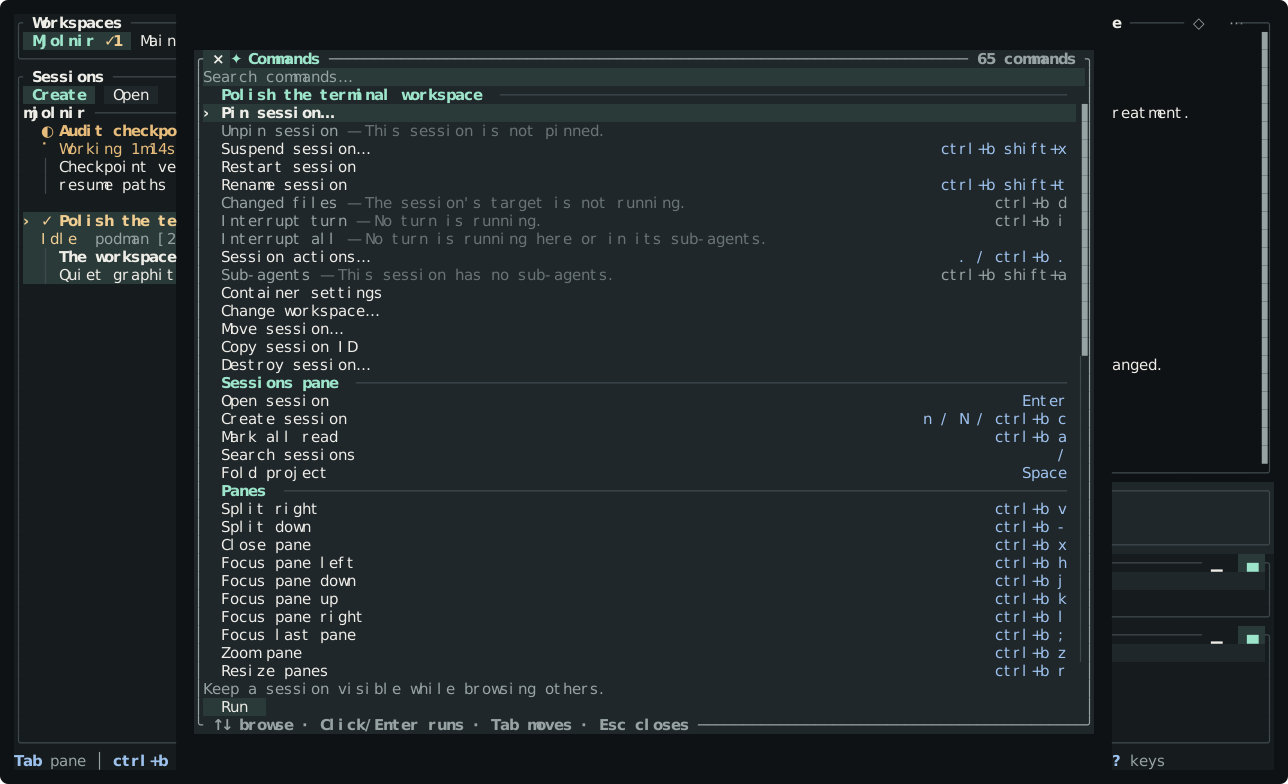
Matching is fuzzy: cre finds Create session and mvs finds Move session, with a command whose label starts with the query first, then in-order matches on the label, then commands whose description contains the text. With an empty query the last five commands you ran appear under Recent before the groups. Create, Sessions, and Workspaces are listed like every other command, so a search finds them even though they also have buttons.
Use ↑ / ↓ or Ctrl+P / Ctrl+N to select a command, Enter to run it, and Esc to close the palette. Selected-session actions include Rename session, Container settings for container-backed sessions, Move, Suspend session, Restart, and Destroy session. Suspend session saves a recovery copy and releases the environment for later Resume; managed clones ask for confirmation when publication is unverified, and a running turn or a sub-agent still at work also requires confirmation, since suspending stops the session’s sub-agents. Its shortcut is prefix+shift+x. Close pane (prefix+x) only dismisses the viewer and leaves the session running.
Move opens preparation and confirmation for a compatible profile or target while keeping the logical session. Restart runs at once when idle and asks first mid-turn. Destroy session permanently removes the session record, environment, and recovery archive after confirmation, while retaining its indexed conversation in SessionWiki. Restoring that conversation cannot recover deleted workspace files. Older linked-worktree sessions also offer a choice to delete their managed branch. Keeping that branch does not save work held only in the environment. After a failed suspension, Discard changes since checkpoint… requires a second confirmation identifying the recovery copy and warning that newer work will be lost. Every confirmation lists a letter for each button, for example c Cancel · d Destroy session; Esc takes the safe answer.
New session and Settings
Section titled “New session and Settings”Press Create, n, N, or prefix+c to open the full session
creation wizard. It asks for the profile, then the target, then the project,
and ends on a review step with the launch options. The target step is skipped
when only one target is available and it has no size to set. The wizard then
provisions the session in the selected workspace. The new row appears
immediately with background launch progress; when it is ready, the normal Prompt
receives focus. No separate fast path or task-entry dialog remains.
Press prefix+s to edit all configuration in Settings: accounts, targets and remote
machines, projects, Interface settings (prefix key, sidebar position, activity
animation, and theme), Advanced display options, review, and web access. Enter opens a
section or edits a value. Fixed choices open in a compact menu over the page;
free-text values open the full editor.
The page’s controls stack in a column at its right edge. Add and Remove
manage entries, and on Projects Create makes a new project bundle.
Detect profiles on Agent Profiles discovers the agents installed
on this machine and usable local runtimes. The dashboard runs the same profile
detection on every plain mj launch (not mj go, mj workspaces, or the
relaunch after an upgrade), so a removed profile for an installed agent returns;
disable the profile instead to stop using it. Review settings are part of the same
draft: discovery checks the selected reviewer profile’s model and effort
capabilities and filters incompatible profiles. Save and Close or Ctrl+S
validates and saves the complete draft. Errors keep your edits in place. Esc
cancels an open choice menu; otherwise Esc, the title-bar ×, or Cancel
closes Settings and discards unsaved configuration and review edits. Web listener changes
take effect on its next start.
Detailed activity clocks are off by default. Turn them on in Settings → Advanced
→ Detailed activity clocks when you want normal session rows and the
conversation header to show separate turn, step, and background clocks. The
ordinary Running status covers the originating turn and its follow-on
background work continuously, so it does not reset or go idle between phases.
Settings → Advanced → Tool calls sets how the conversation shows tool
calls. Grouped, the default, folds a run of finished calls into one row of
short names and keeps only the newest thought. Inline with output works like
Codex: every call gets its own row with its full command, every thought stays,
and under each call you see the first and last lines of its output, with a count
of the lines in between. Reads and searches show no output unless they fail.
Tool output lines sets how many output rows each inline call shows (5 by
default; 0 hides output). Click a finished call to see all of its output.
The raw transcript (prefix+t) is the same in both modes.
The configured spinner appears in the Prompt composer’s upper-right corner only while the selected session is actually busy; an idle or suspended session does not animate.
Suspended sessions are not listed in the Sessions pane. They remain available through Open, which lists them for resuming.
Prompt editor
Section titled “Prompt editor”The Prompt pane is a multiline editor with completion, history, and transcript
controls. A > marks the editable input. The microphone button, mic, occupies the
upper-left corner of the composer, followed by Model and Effort. The
selected session’s busy spinner appears at the upper right while work is active.
It disappears when the session is idle, stopped, or waiting without active work.
The bottom border contains View tasks (N). With the cursor on the last input
line, press ↓ to focus that control; press Enter to open the tasks dialog and
Esc to close it. The dialog lists the session’s queued and active tasks without
changing the prompt draft.
| Key | Action |
|---|---|
Enter | Send now, or queue while the active turn is running |
Shift+Enter / Alt+Enter | Insert a newline |
Tab | Accept a completion, or move to the next pane when none is offered |
Esc | Cancel the running turn or shell command |
Page Up / Page Down | Scroll the transcript |
Ctrl+Page Up | Browse earlier conversation pages; Enter loads an earlier page and Esc returns to the live conversation |
↑ / ↓ | Move within multiline input or walk prompt history |
Ctrl+R | Search prompt history; Alt+R changes the search scope |
Ctrl+V | Paste the system clipboard |
Ctrl+A / Ctrl+E | Move to the start or end of the line |
Ctrl+B / Ctrl+F | Move back or forward one character |
Alt+B / Alt+F | Move back or forward one word |
Ctrl+H / Ctrl+D | Delete before or after the cursor |
Ctrl+W / Alt+D | Delete the word before or after the cursor |
Ctrl+U / Ctrl+K | Delete to the start or end of the line |
Ctrl+Y | Yank the most recently killed text |
Ctrl+C | Save the current draft to history and clear Prompt |
Ctrl+P / Ctrl+N | Move to the previous or next line, then through history |
Inside history search, Ctrl+R or ↑ selects an older match, Ctrl+S or ↓ selects a newer match, Enter accepts it, and Esc or Ctrl+C cancels the search.
Toggling the transcript between rendered and raw text (prefix+t) and starting or stopping dictation (prefix+m) are prefix commands rather than composer-only keys; see Prefix key. They act on whichever session’s conversation is visible, including from a pane other than Prompt.
Clipboard images
Section titled “Clipboard images”Ctrl+V reads the clipboard on the machine running the terminal client. Cmd+V
works too if your terminal forwards that key to Mjolnir. When the active agent
advertises image support, Mjolnir prefers an image over text and inserts an
editable [image N] marker. Delete the marker to remove the attachment. /attach <path> adds an image from that machine’s filesystem under the same capability
rule.
A paste made only of absolute paths to PNG, JPEG, or WebP files attaches those
files instead of sending the paths as text, since a container or remote session
cannot open a path on your machine. This covers dropping files onto the
terminal, Explorer’s “Copy as path”, quoted or backslash-escaped paths,
file:// URLs, and Windows drive or UNC paths, which WSL translates with
wslpath. /attach accepts the same forms. Copying files in a file manager and
pressing Ctrl+V pastes their paths, which attach the same way. If a file
cannot be read as an image, its path returns to the draft as text and a notice
says why.
Agents that have not advertised image support, question answer fields, and
history search receive only the clipboard’s text representation. If none is
available, the notice includes the clipboard error. Other text pasted by your
terminal stays text. If image support disappears, existing image drafts are kept;
remove their markers or wait for support to return before sending. prefix+m
remains the dictation shortcut.
Native macOS and Windows use their system clipboards. Linux needs access to a working X11 or Wayland clipboard; a headless shell alone cannot read your desktop clipboard. WSL uses Windows PowerShell to read the Windows clipboard. Over SSH, Mjolnir runs on the remote machine and cannot read your laptop’s clipboard image through an ordinary text paste. Run the terminal client locally when you need local image paste into a remote session. Terminal and tmux key bindings can intercept clipboard shortcuts; configure them to forward the key. OSC 52 copy support does not provide image clipboard reads.
Shell commands
Section titled “Shell commands”Start a message with ! to run the remainder through bash -lc inside the selected session’s target and workspace:
!git status --shortThe command runs independently of an active agent turn, so it does not block the harness. Mjolnir streams bounded live output into the transcript and saves the result there. After the command finishes, its result is included once as hidden context with the next prompt you submit, letting the agent respond to what the command found without copying the output into Prompt.
A shell command finishes when the shell exits, and its exit code and duration are the shell’s. Mjolnir then collects output that is still arriving for up to 2 seconds and stops any background process the command left running, such as (sleep 300 &), so a process started that way does not outlive the command.
Press Esc to cancel a running shell command. The same ! syntax works in the web viewer, where a Cancel button replaces the terminal key. A shell command has the permissions of the selected target, so review destructive commands just as you would in a directly attached shell.
Help, footer, and terminal setup
Section titled “Help, footer, and terminal setup”Press prefix+? for scrollable contextual help and Esc to close it. The footer is generated from the same command registry: pane-local commands appear first, then the live prefix chord group, so the footer never names a key that is not actually bound.
The help filter has focus as soon as help opens. Typing narrows them to the rows whose key, command name, or description contains what you typed; Ctrl+U clears the filter text; Esc clears the filter and a second Esc closes help; Enter closes it from either state. The arrow and page keys keep scrolling while the filter has focus, and Ctrl+P and Ctrl+N move up and down one row, the same pairing the command palette answers.
If you run Mjolnir inside tmux or GNU screen with its default ctrl+b prefix, the multiplexer sees ctrl+b first and Mjolnir’s prefix never arms. Press ctrl+b twice to send it through, as you would for tmux’s own prefix, or set prefix to a different key in [keys]. The dashboard notices this on its first launch inside a multiplexer and says so once in the footer.
Inside help, Esc clears the filter text if there is any and otherwise closes help. On a pane, Esc clears the footer notice.
The footer holds one notice at a time. When a second failure arrives before the first has been readable for a few seconds, the bar reads 2 failures · latest: … so nothing is silently lost, and Recent messages in the command palette lists the last thirty notices, newest first, with failures in the warning color.
For session states and recovery behavior, continue to sessions. The CLI reference covers non-interactive commands, while troubleshooting covers key handling, target failures, and viewer connectivity.